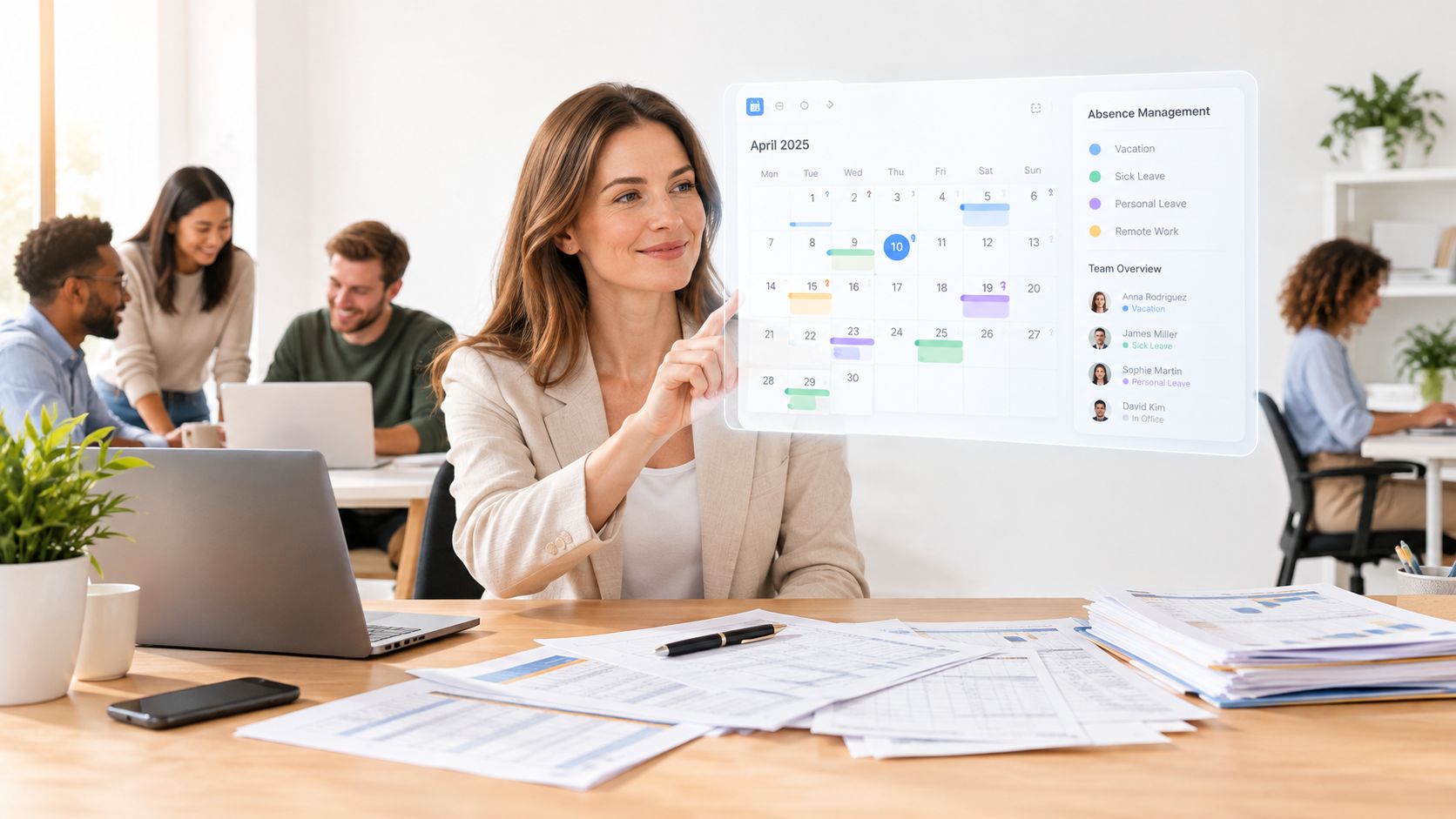
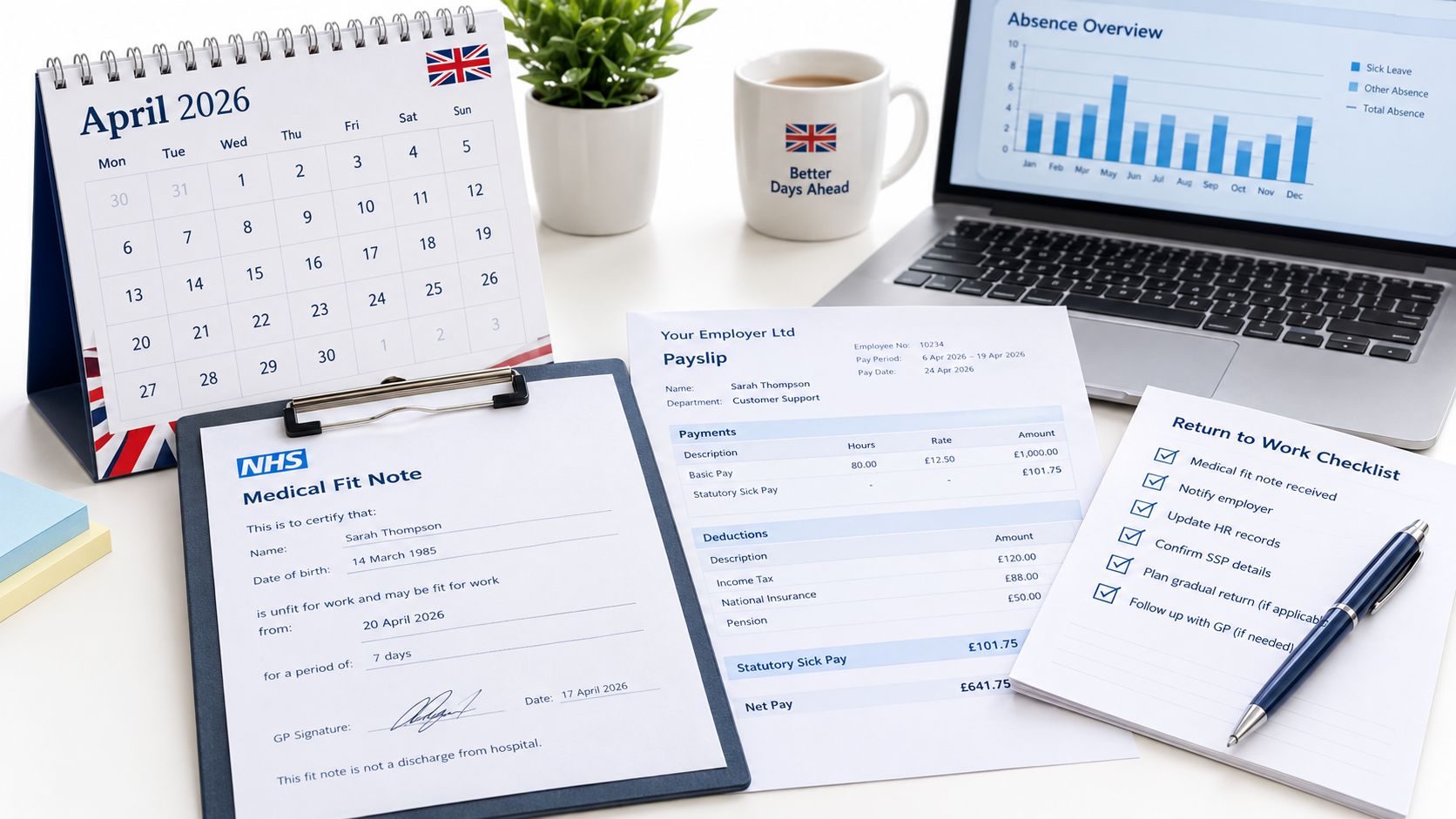
You're halfway through your working day when an employee emails to ask whether they have enough annual leave left for a family appointment. You search a spreadsheet, check a message from their manager, and realise the latest version may be in someone else's inbox. Later that evening, the employee still needs to submit the request, so they wait until the next morning or send another email.
A staff login portal changes that routine. The employee signs in, checks their balance, submits the request, and receives a clear status. Their manager reviews it when convenient, while HR retains a controlled record instead of stitching together messages and spreadsheets. In the UK, this kind of self-service is no longer a niche idea. A 2023 survey reported that 68% of British companies were investing in digital HR solutions, compared with a European average of 60%, placing the UK ahead of that comparison point (ServiceNow's employee centre overview).
Table of Contents
- What a Staff Login Portal Does
- The Five Core Features That Make a Portal Work
- Security and Compliance Requirements for UK Businesses
- How the Portal Fits Into Your Wider HR Stack
- An Implementation Checklist for Small Businesses
- Common Pitfalls and How to Avoid Them
- Troubleshooting and Frequently Asked Questions
What a Staff Login Portal Does
An employee submits annual leave at 9pm from a laptop. The manager reviews it from a phone the next morning. The request can move through the right approval route without waiting for HR to update a spreadsheet, forward an email, or confirm which document is current.
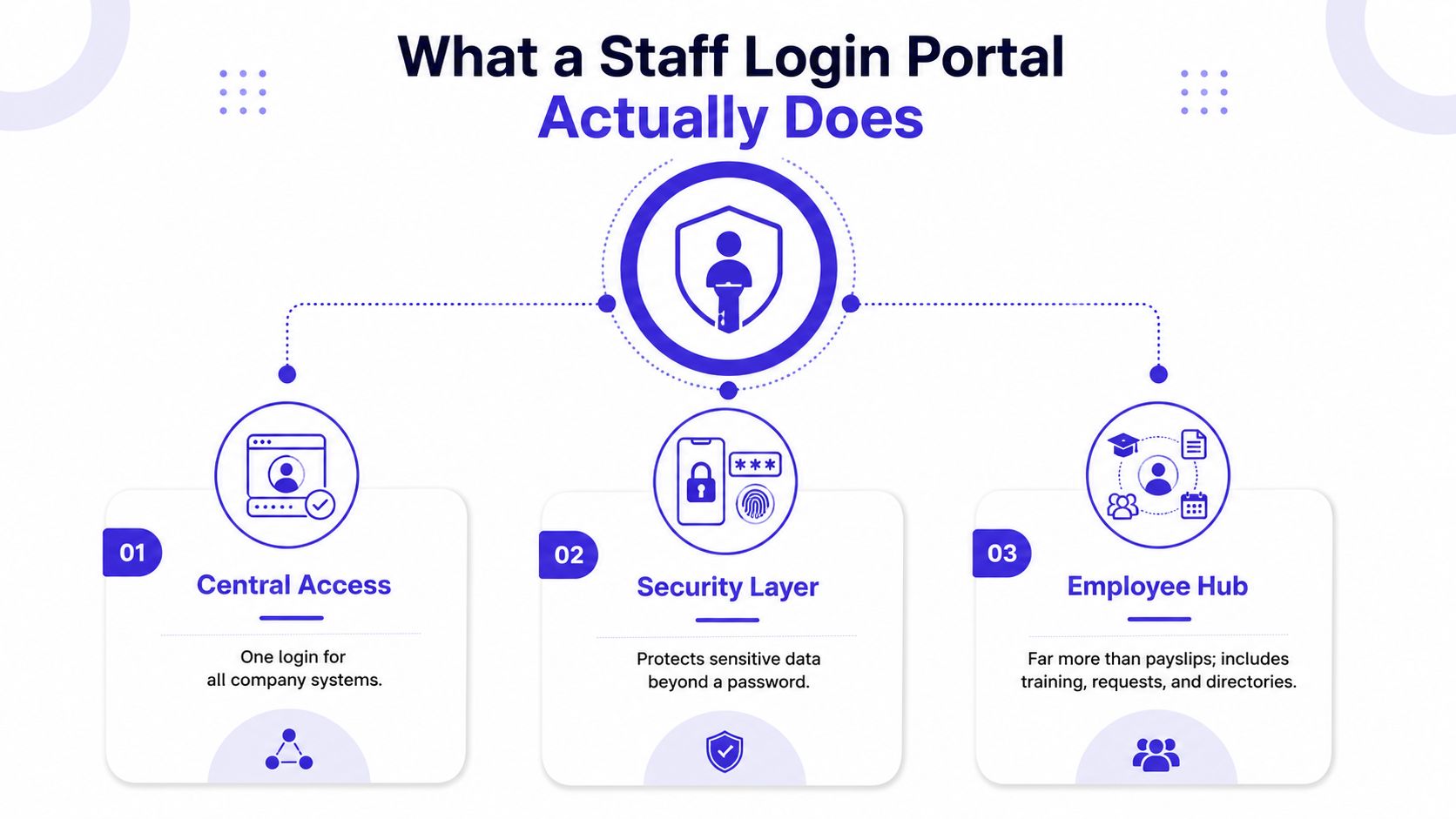
That exchange shows the purpose of a staff login portal. It provides a secure front door to employee self-service, connecting each person with the HR tasks and information they are permitted to use. The portal is the visible layer. Behind it sits the HR database, approval workflow, payroll information, absence record, or another connected system that stores and processes the data. Our guide to employee self-service portals examines that wider setup in more detail.
A portal is therefore neither the entire HR system nor only a password page. It is the access layer that checks identity and permissions before someone views information, submits a request, approves an action, or updates a record. For a small UK business, that distinction helps separate convenience from control. Staff should face little friction for routine tasks, while HR needs a traceable process for sensitive records.
The people behind the login
Employees commonly use a portal to:
- Request annual leave: Submit dates without sending an email to HR.
- Check availability: View leave balances, approved absence, or team calendars where the system supports them.
- Update personal details: Keep contact information and emergency contacts current.
- Access payroll documents: View payslips or tax documents through a protected account.
- Track requests: See whether a manager has approved, declined, or returned an application.
Managers see a different set of controls. They may approve leave, check team coverage, or review absence information for their direct reports. HR and payroll administrators require wider access, but permissions should still match their duties. Someone managing payroll does not automatically need access to every employee record.
Cambridge University's Employee Self-Service portal shows how this channel can extend beyond leave requests. Staff can view and download online payslips, amend contact details, receive email notifications about payslips, view absence data, and access P60s through a Raven-password-protected login. The same example connects staff data with statutory reporting, including information supplied for HESA collection (employee self-service explained by LeaveWizard).
Why spreadsheets stop being enough
A spreadsheet can record a date, but it rarely verifies identity, preserves a dependable approval history, removes access automatically, or shows who changed which field. A shared HR inbox creates a similar workload. Staff may submit requests, while HR still interprets messages, updates records, contacts managers, and resolves conflicting versions.
A portal places the employee beside the task they need to complete. Staff can handle routine checks and requests without treating HR as a helpdesk, while HR gains a repeatable process that can be reviewed and improved.
Practical rule: If an employee can complete a routine request safely without HR intervention, that request is a strong candidate for portal self-service.
The Five Core Features That Make a Portal Work
A staff login portal should balance two needs: quick access for employees and controlled, reviewable processes for HR. The right person should reach the right service, while the business keeps a reliable record of important actions. Use these five features as a practical evaluation checklist.
One entrance, not a collection of keys
Single sign-on, or SSO, lets staff use an existing organisational identity instead of remembering a separate password for each service. It can reduce repeated password entry and give HR one place to manage access.
Set it up with leavers and role changes in mind. Check which identity providers the portal supports, what happens when an employee changes role, and whether access can be disabled promptly when someone leaves. SSO reduces friction only when identity records remain accurate.
A second check protects the account
Multi-factor authentication, or MFA, asks for another proof of identity after the password. This may be an authenticator app, text message, security key, or another supported method. NHS England Digital's employer portal for the Digital Staff Passport offers a UK example, with Microsoft Authenticator and mobile-phone SMS security codes available as MFA options. Its guidance also explains that the authenticator code changes every 30 seconds (NHS England Digital's MFA guidance).
Use the strongest practical MFA for users who can change payroll details, permissions, or HR records. Staff who only submit leave requests still need protection, but account recovery should be clear and manageable. If recovery is confusing, employees may seek workarounds that weaken the control.
For practical guidance on protecting mobile access, see these mobile app security considerations.
Job responsibilities determine visibility
Role-based access control shows information according to a person's duties. An employee may see only their own leave balance, while a manager sees their team's requests. An HR administrator may manage policies and records. A finance user can receive absence totals for payroll without accessing private HR notes.
Access should be granted by role, reviewed when duties change, and removed when the role ends. Giving every user administrator rights for convenience exposes more information and creates more opportunities for accidental changes.
Mobile access must still be controlled
Responsive mobile access lets staff use the portal from a phone or tablet, which suits distributed teams and employees who are away from a desk. Check whether the mobile experience supports MFA, device security, session controls, accessible actions, and a clear sign-out process.
A manager approving leave on a phone should see the same authoritative request available on a desktop. The approval should update the same record and any connected calendar. Separate mobile records or delayed updates create uncertainty for employees, managers, and payroll.
Audit trails answer the awkward questions
An audit trail records relevant events such as logins, failed attempts, permission changes, approvals, and updates. It gives authorised users a way to establish what happened, who acted, and when.
Ask the vendor whether each entry identifies the user, action, affected record, and time. Check whether administrators can review or export the information. Clear logs help resolve disputes, investigate suspicious activity, and show that access is being managed rather than assumed.
Security and Compliance Requirements for UK Businesses
A staff portal may contain payslips, addresses, emergency contacts, absence details, and other personal information. A small employer can protect these records without making everyday tasks difficult. The practical goal is a fair trade-off: staff should reach the services they need with little friction, while HR can show who received access, why, and for how long.
The ICO's access-control guidance recommends documenting how rights are granted to new starters, using lockout mechanisms after repeated failed attempts, setting password-expiration dates with reminders, and applying MFA when personal information needs stronger protection (ICO access-control guidance).
Apply the strongest controls where the damage is greatest
NCSC guidance recommends MFA for online accounts because it reduces risks from guessed passwords, stolen credentials, and suspicious logins. It also covers separate administrator accounts, tiered privileges, and records of failed second-step MFA attempts or unusual locations (NCSC identity and access management guidance).
For a small business, apply those controls in a focused way:
- Separate admin identities: Keep the account used for ordinary work separate from one that manages payroll or HR permissions.
- Use strong MFA for privileged roles: Choose phishing-resistant methods if the portal and identity provider support them.
- Record authentication events: Keep failed MFA attempts and unusual login activity available for review.
- Remove access promptly: Add portal access to the leaver checklist.
- Review permissions: Confirm that managers see only current direct reports, and that temporary access expires.
A clear control plan also helps when comparing products. Use the product's governance, resilience, support, and security commitments alongside broader enterprise adoption standards for apps. A small company does not need enterprise bureaucracy. It does need evidence that access can remain disciplined as responsibilities and staff numbers change.
A portal with clear logs makes it easier to resolve disputes, investigate suspicious activity, and demonstrate that access is being managed. Ask whether each entry identifies the user, action, affected record, and time, and whether an authorised administrator can review or export it.
Make the login journey accessible
A secure portal still fails operationally if an employee cannot reach the login button by keyboard, understand an error message with a screen reader, or complete MFA without assistance. GOV.UK One Login's accessibility statement says the service was assessed against WCAG 2.1 and is partially compliant with AA because identified non-compliances remain (GOV.UK One Login accessibility statement).
Include accessibility in testing. Check keyboard navigation, focus order, text alternatives, contrast, error messages, time limits, and password-reset instructions. Record exceptions and provide a practical support route for anyone who meets a barrier.
A secure login that prevents a disabled employee from submitting time-sensitive leave is still an operational failure.
An identity-provider connection, such as the LeaveWizard and Okta integration, should follow the same controls. Check that it preserves appropriate access, supports joiner and leaver processes, and does not create an unmonitored second route into employee data.
How the Portal Fits Into Your Wider HR Stack
A leave request rarely ends at the login screen. In a small business, it may affect the manager's decision, the team calendar, HR records, and payroll preparation. The portal should pass the approved information between those points so staff are not repeating entries and HR can trace which record is current.
Consider a setup with a payroll platform, shared calendar, identity provider, and absence tool. An employee submits leave through the portal, the authorised manager approves it, and the agreed calendar reflects the absence. HR can review the record, while finance receives the absence information needed for payroll. Each connection should use approved data and show what happens when an update fails.
Start with the records people already trust
Different users need different information. Employees need a dependable leave balance, managers need team availability, payroll needs accurate paid and unpaid absence, and HR needs policy rules with an approval history. Connect these needs while limiting access to the records each role requires. An employee may see only their own balance, a manager their team's requests, and a finance user the absence totals needed for payroll.
Ask vendors to demonstrate a complete workflow rather than isolated features:
| Business need | What the demonstration should show |
|---|---|
| Leave request | An employee submits dates and sees the request status |
| Manager approval | The authorised manager reviews the request and acts on it |
| Calendar visibility | Approved absence appears in the agreed team or business calendar |
| Payroll preparation | Relevant records can be exported or connected without manual re-entry |
| Identity management | A user's access changes when their role or employment status changes |
LeaveWizard is an example of a small-business employee management option. Its stated features include employee leave and absence, automated leave calculations, approval workflows, reports, calendars, and self-service through web portals and smartphone apps. Use those features as a demonstration checklist, then test them against your own policies and payroll process.
Test what each integration actually does
A logo wall does not prove meaningful integration. Ask whether the connection sends information one way or both ways, whether updates happen automatically, how errors are reported, and who corrects conflicting records.
Identity connections need careful testing. Single sign-on can reduce login friction, while role changes and leavers still need to update access reliably from the identity source. Calendar integration can help planning, provided the published details match the business's privacy rules.
Remote teams also rely on communication systems. A Hosted Telecommunications hosted PBX can support staff working from anywhere, but it remains separate from HR records. The useful question is how each workplace system fits the operating process, who owns it, and where staff should go for help.
An Implementation Checklist for Small Businesses
A reliable rollout begins before anyone receives an invitation. Decide what the staff login portal will replace, which systems it will connect to, and who owns each approval. This keeps the portal useful for employees while giving HR a clear record of responsibility.
Before you send any invitations, audit what you have
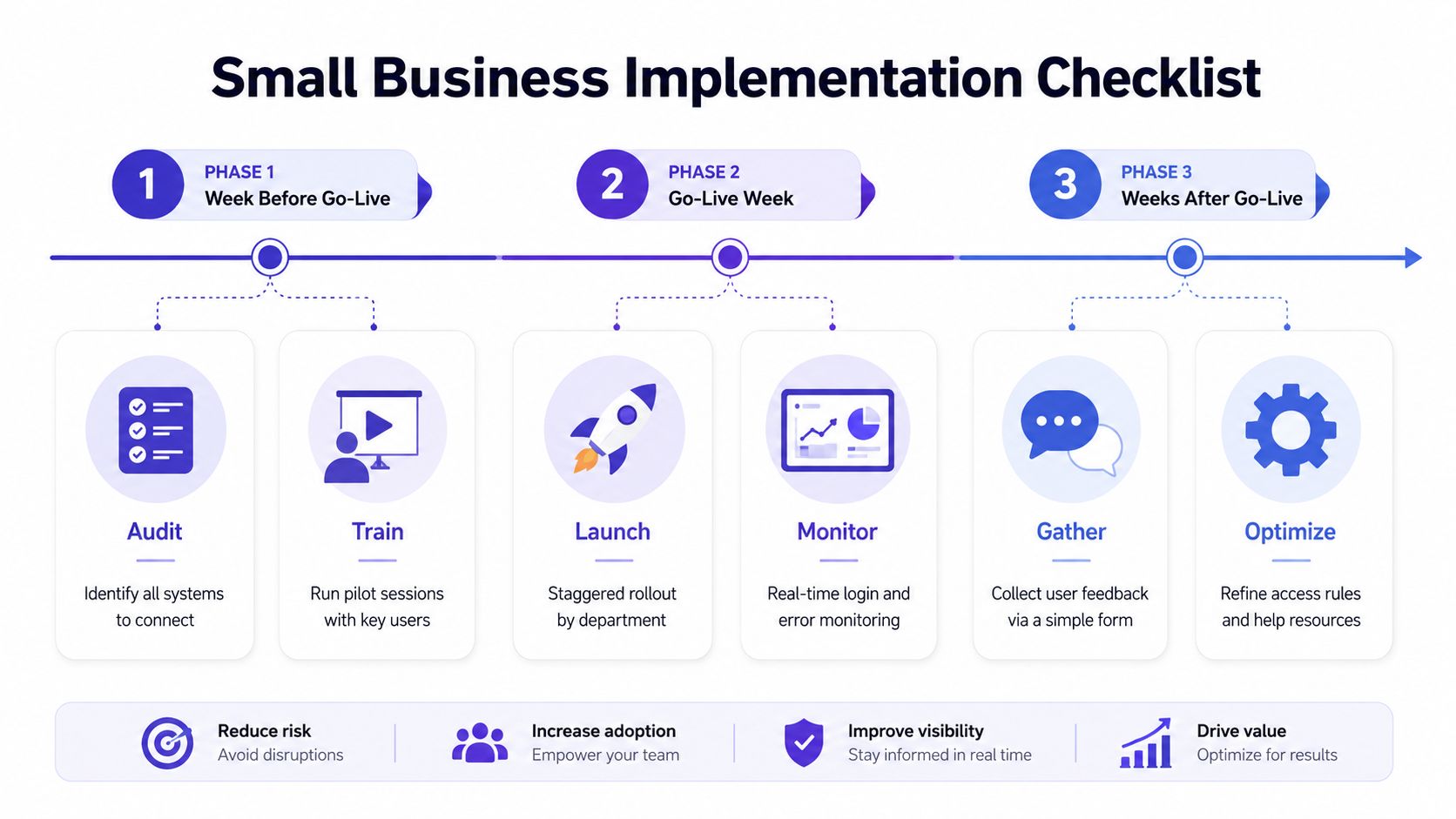
List every spreadsheet, inbox, calendar, payroll export, and identity service involved in leave or employee-record administration. Mark the authoritative system for each type of information. If two tools show different “current” balances, resolve the conflict before launch.
Define roles in plain language. Start with the smallest useful groups, such as employee, manager, HR administrator, and payroll user. Record who can approve leave, edit policies, view reports, and reset access. Turn on MFA, especially for privileged accounts, and document how a user recovers access.
Prepare a short acceptable-use note. Tell staff not to share accounts, where to report suspicious prompts, how to request help, and what information should never appear in an ordinary email. Keep the guidance practical, so employees know the action to take rather than having to interpret a security manual.
Run a pilot with two or three managers and a small mix of employees. Test leave requests, approvals, rejections, cancellations, balance checks, password resets, MFA recovery, mobile access, and leaver removal. Include real policy scenarios, such as a request crossing a weekend or requiring manager coverage.
On launch day, stagger the rollout
Send a short email with the login address, purpose, first action, MFA instructions, support contact, and a warning against sharing passwords. If HR capacity is limited, release access by department. Keep the old process available only for a defined transition period, or staff may continue using both routes.
Monitor failed logins, reset requests, approval errors, and unexpected permission issues. Ask managers to confirm that their team visibility is correct. Record the user role, attempted task, and outcome for each issue. That record helps separate a training gap from a configuration fault.
After people are using the portal, collect feedback
Use a simple form to ask where staff got stuck, what information they expected to find, and which approval or notification seemed unclear. Review access rules, help text, and email wording against the responses.
Schedule regular access reviews covering new starters, role changes, managers who move teams, contractors, and leavers. A portal becomes dependable when the surrounding process is maintained as carefully as the initial configuration.
Common Pitfalls and How to Avoid Them
Portal failures often start with a convenient shortcut. A small team might share one login during a busy week, leave a manager with administrator access after a project ends, or keep an old spreadsheet running indefinitely. These choices blur responsibility and create two processes that can disagree.
Shared accounts hide who did the work
If several people use one account, the audit record cannot show reliably who submitted, approved, or changed a request. Create an account for each person instead. For a temporary worker, use a named account with a clear end date, then remove it when the assignment finishes.
A shared account also creates confusion during handovers. If an approval is questioned, HR may need to ask several people rather than checking one user's record. Individual access keeps the trail as clear as a sign-out sheet with one name per line.
MFA prompts can lead to rushed decisions
A staff member submitting urgent absence information may approve repeated sign-in prompts without checking them. Review why prompts recur, whether the trusted-device setting suits the work pattern, and whether the recovery route is practical. Show employees how to reject an unexpected prompt and report it.
The aim is to remove unnecessary interruptions without weakening the control. Test the process with staff who use it during a busy shift, not only with the person who configured it.
Administrator access often outlives the task
A manager who approves leave may not need access to every employee record or policy setting. Give each role only the functions required for its work, and use a separate administrator account for configuration. Remove excess access when someone changes teams or finishes a project.
See the ICO access-control guidance cited in the security section above for the full list of recommended controls. Keep the practical action in your internal checklist to avoid duplicating the citation.
Old accounts and inaccessible screens remain hidden failures
Add portal removal to the same leaver workflow as email, payroll, and equipment return. For accessibility, test the complete journey with keyboard navigation and assistive technology. An unlabeled field or unclear error can stop a leave request without explaining the problem to HR. Provide a support route that does not require unnecessary personal information.
Troubleshooting and Frequently Asked Questions
The employee can't log in. Check whether the account is active, the identity provider is working, the password is correct, and the account has triggered lockout. Don't reset access before confirming the person's identity.
A former employee still appears active. Disable the portal account and review connected identity groups, mobile sessions, and administrator access. Record the action for the access review.
MFA has stopped working during a busy absence period. Use the documented recovery route, verify the employee, issue a controlled reset, and review the authentication log afterwards. Don't turn off MFA for everyone.
A staff member can't complete the login with assistive technology. Offer an accessible alternative immediately, record the barrier, and test the full journey with keyboard and screen-reader support. Strong authentication and accessibility should be designed together.