
It's 6.40 on a Monday, you've woken up unwell, and your shift starts in an hour. You reach for your phone, search for your employer's absence system, tap the first result, and your password doesn't work. Your colleague is waiting to hear whether they need to cover for you, your manager hasn't seen a request, and you're not sure whether the problem is the wrong website, the wrong email address, or an account that was never set up.
That stuck moment is exactly what a good absence management login should prevent. You need three things, in order. First, the correct entry point for your role. Second, a sign-in that works on the device you have on hand. Third, an agreed fallback when you're too unwell to sign in at all, so the absence is still recorded accurately and only the right people can see it.
Table of Contents
- Choose Your Absence Management Login Route
- Sign In with SSO or Email and Password
- Reset a Forgotten or Locked Password
- Fix Login and Submission Errors
- Limit What Each Role Can See
- Record Sickness Once You Are In
- Report Absence When Sign-In Fails
- Confirm Access Before the Next Absence
Choose Your Absence Management Login Route
A staff member who needs to report an absence may be using a phone, a shared computer or a personal device. Choose the route that matches your role and the access your employer has set up.
| Route | Who uses it | Sign-in method | When to choose it |
|---|---|---|---|
| Employee web portal | Employee | Email and password | Check leave balances, submit requests and view approval status |
| Smartphone app | Employee or manager | The account set up for the user | Submit or review requests away from a desk |
| Manager approvals | Line manager | The manager's account | Review requests and check who is off before approving |
| Employee details | Designated administrator | The administrator's account | Add new members of staff and update employee details |
| Staff without a work email | Employee, with administrator support | An account set up by the designated administrator | Arrange access or have the absence recorded on the employee's behalf |
| Shared or borrowed device | Any role | The user's own account | Complete a task on a kiosk, reception PC or borrowed phone, then sign out |
Start From the Address Your Employer Issued
Use the address in your invitation or password email, or the link your employer gave you. Search results can lead to a different organisation's sign-in page, where your details will not work. Once you have confirmed the correct address, save it as a bookmark.
Can't find the invitation? Ask your designated administrator to check the email address registered to your account and help you access the application. Avoid guessing at web addresses or trying details from another service.
Match Your Role to the Right View
Employees can use the web self-service portal or smartphone app to check leave balances, submit requests and see approval status. Managers use their account to review requests. Before approving, they can check who is already off.
A designated administrator can add new members of staff to the LeaveWizard application and update employee details. Access should fit the task: employees need their own absence information, managers need the details required to review requests, and administrators handle employee records. Keep sign-in details private, especially on a shared device.
Route check: If you can sign in but cannot see the view you need, ask your designated administrator to check your account and access.
Routes for Staff Without a Standard Setup
Staff without a work email can ask the designated administrator to help arrange an account or record an absence on their behalf. That gives the organisation a way to keep the absence record in the application, even when the employee cannot use the usual sign-in route.
On a borrowed device, use your own account, avoid saving the password, and sign out when you finish. If you are too unwell to complete the sign-in, follow your employer's agreed method for reporting the absence.
Sign In with SSO or Email and Password
When you open the sign-in page, use the email address and password issued for your LeaveWizard account. A work identity sign-in, if your organisation uses one, is arranged by its IT team. LeaveWizard's Okta integration guide may help you understand that work identity route, but follow your employer's instructions for accessing your account.
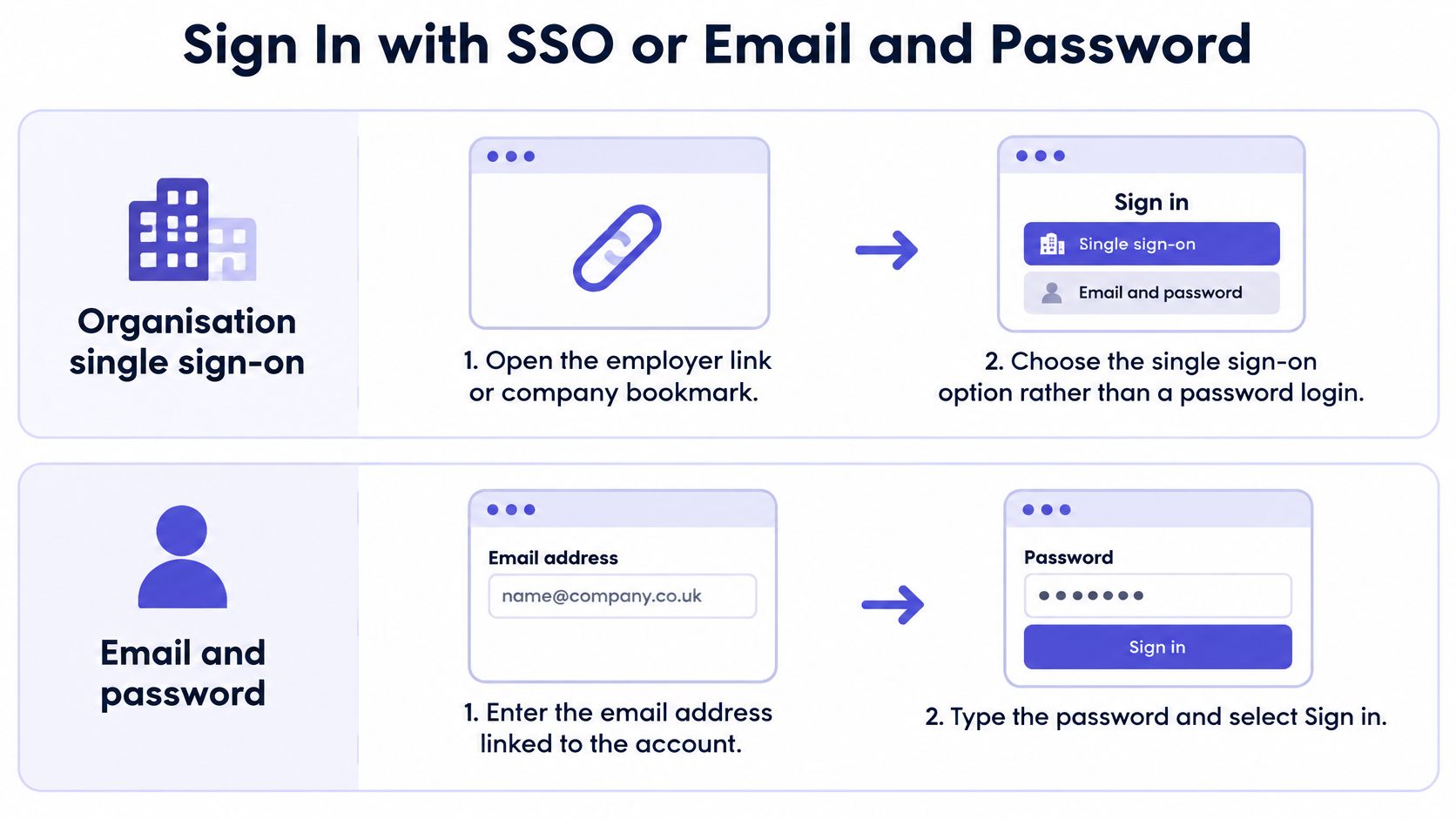
Email and Password
- Open the sign-in page: Use the link provided by your employer or a saved company bookmark. Check that the page address looks right before entering your details.
- Enter your registered email: Use the address associated with your LeaveWizard account, including any dots or hyphens.
- Enter your password: Use the current password you set when activating your account, or the one you last changed it to.
- Check the account name: Once signed in, make sure the name shown is yours before viewing or recording absence.
If you are signing in for the first time, open your LeaveWizard invitation and follow its instructions to activate your account. If your organisation directs you to a work-identity sign-in, ask its IT team which account and route to use.
Be alert to imitation sign-in pages, especially when opening links from unexpected emails. This guide to login phishing awareness for healthcare staff explains signs that a login page may be fraudulent.
Three Checks Once You're In
Check that the displayed name is yours and that you have the view needed for your task. Employees can check their leave entitlement and allowance in the app, and submit requests through the app or web self-service portal. Managers should use their manager access to review requests.
If the name on screen isn't yours, stop and sign out. You're looking at someone else's session.
Each person should have their own account. Do not share a mailbox login across a team, particularly when it provides access to absence records. If the page looks unfamiliar or asks for details you were not given, stop and check with your employer before continuing.
Reset a Forgotten or Locked Password
Three different problems look identical on a login page. You've forgotten the password, the account is locked, or the account was never created. Each one has a different fix, and using the wrong one wastes time.
Forgotten Password
This is the most common case, and it's the only one where the reset link helps.
- Use the forgotten password link: Find it on the trusted sign-in page, not in an old email.
- Enter your registered email once: Submit it a single time, because repeated requests create several links and only the newest works.
- Open the newest message: Ignore any older reset emails sitting in your inbox.
- Choose a new password: Meet the stated length and character rules shown on the reset page.
- Return to sign-in: Go back to the login page and use the new password there, rather than clicking the reset link a second time.
If nothing arrives, check your junk folder once, confirm the spelling of your registered email with the administrator, and wait out any resend limit before trying again. Sending five requests in a minute doesn't make the email arrive faster.
On a phone, complete the reset in a browser first, then sign into the app with the new details. Apps often keep the old password saved, so the browser route avoids a confusing loop.
Locked Account
A lock usually follows repeated failed attempts. Stop guessing, because each extra try can extend the block and turn a short wait into a long one.
Ask the administrator to confirm your account is active, then request one fresh reset and use only that link. While you wait, don't ask a colleague to sign in for you with their details to check whether the system is working.
One reset, used once, fixes most lockouts. Ten guesses make them worse.
No Account Yet
A reset can't create a user. If you've never had an invitation, the designated administrator needs to add you and issue the first invitation email, and only then can you set a password.
This catches new starters and staff who changed email address before their account was updated. Tell the administrator the exact address you want registered, so the invitation doesn't go to a mailbox you no longer open.
Single Sign-On Users
If you sign in through your work identity, the absence system may hold no separate password at all. Your reset belongs to that identity provider, and the local forgotten password link won't change it.
Use your organisation's normal route for resetting your work account, then return and choose single sign-on again. Once you're back in, test the sign-in before the next absence, and sign out of any shared device you used during the reset.
Fix Login and Submission Errors
Match the message you can see, try the single fix beside it, and escalate if it comes back. Trying three fixes at once tells you nothing about which one worked.
| What you see | Likely cause | First fix |
|---|---|---|
| Email or password not recognised | Typing error or old password | Re-enter slowly, then use one reset |
| No account found | User was never added | Administrator creates the account |
| SSO button missing or rejected | Local password used for an SSO user | Sign in via the work identity provider |
| Reset email missing | Junk folder, wrong address or resend limit | Check junk once, then ask an admin |
| Account locked | Repeated failed attempts | Stop guessing and request one fresh reset |
| Page expires while saving | Session timeout | Sign in again and re-enter the dates |
| Cannot submit leave today | Notice period or a locked date | Choose a later date or ask a manager |
| Duplicate dates | Overlap with an existing request | Open the original and amend it |
| Manager sees no team | Wrong role or department | Administrator checks role and team |
| App rejects a new password | App still stored the old one | Sign out of the app and sign in again |
Read the Fix Owner, Not Just the Message
Some fixes are yours to make, such as re-entering details slowly or signing out of an app that's holding an old password. Others belong to the administrator, including a missing account, a wrong role, or a manager who can sign in but can't see their team.
A request that won't save is often simpler than it looks. A mandatory date or type left empty will block the form, so scroll back and look for the field marked as required before you assume the system is broken.
Two Edge Cases That Look Like Errors
A company holiday or locked date can look like a system fault when it's a rule doing its job. The dates are closed for everyone, so picking them will be refused however many times you try. Ask your manager whether an exception route exists rather than re-entering the same dates.
A successful login showing another person's name means the previous user left a shared browser signed in. Stop, sign out, and don't open their requests or balances. Then sign in with your own account in a fresh private window.
Privacy point: Don't clear a login problem by emailing sickness details to a wide group. A short message to your manager and administrator is enough.
When the Table Doesn't Match
Note the exact on-screen message, the time it appeared, and whether you used web or app. Those three details let an administrator tell a session timeout from a permissions fault without guessing.
Quote them as written rather than paraphrasing. Saying the system said no isn't the same as reporting that it said your account was locked, and the fix differs.
Limit What Each Role Can See
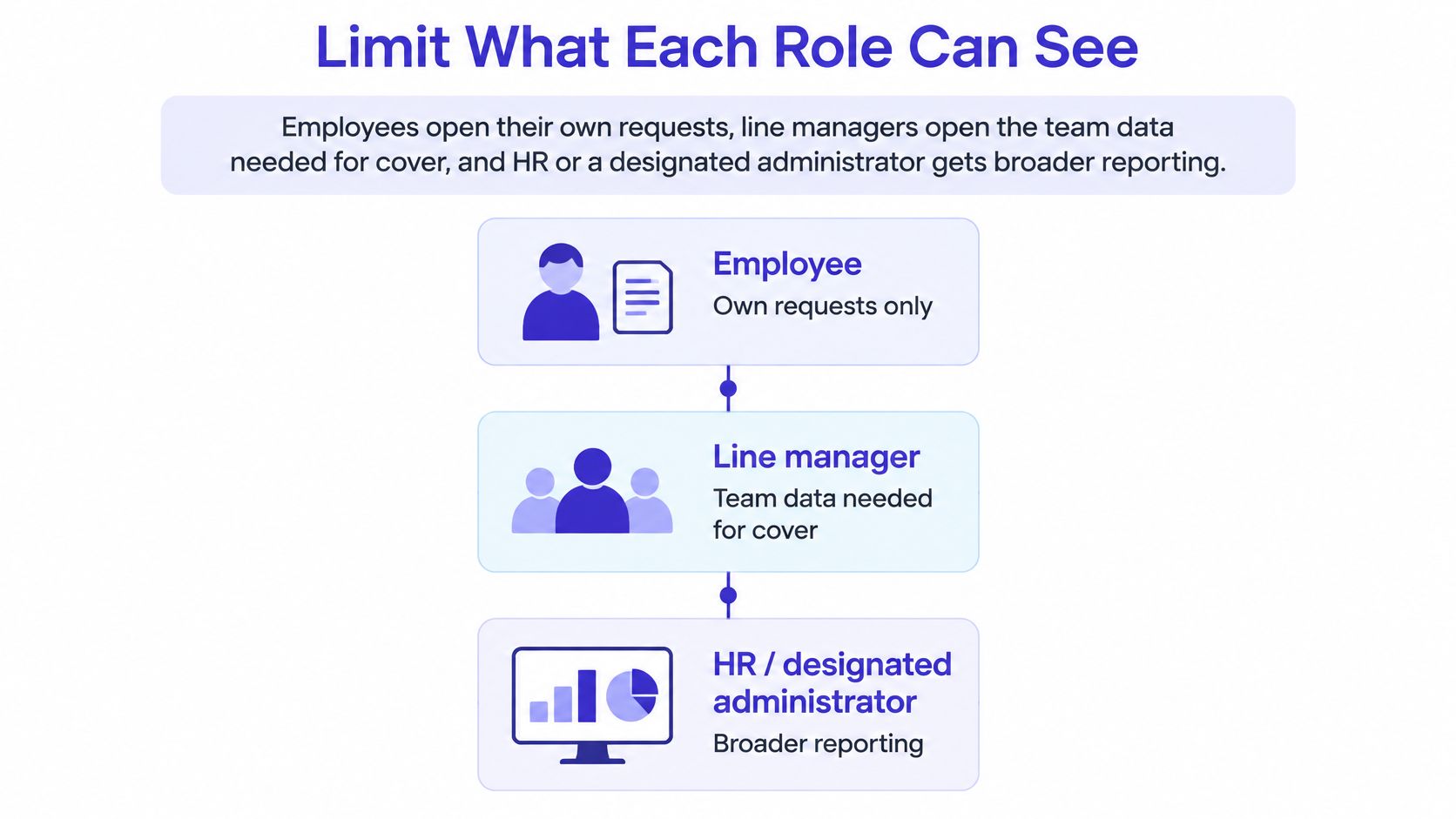
Start with least privilege. Employees open their own requests, line managers open the team data needed for cover, and HR or a designated administrator gets broader reporting. Nobody gets wider access just because it's convenient.
| Role | Can see | Can do | Must not do |
|---|---|---|---|
| Employee | Own balance, requests and approval status | Submit, amend or cancel own requests | Open colleagues' records |
| Line manager | Own team's dates and cover needs | Approve, decline and arrange cover | Browse other departments or medical detail |
| Administrator | Staff records and reports the role allows | Add users, set roles, correct records | Share one login or export health notes casually |
| Archived leaver | No live sign-in | None until restored by an admin | Be deleted if payroll may still need the history |
The diagram below sets out that split as a hierarchy, with the narrowest view at employee level.
Why the Boundaries Exist
Absence records are personal employment data under the UK GDPR and Data Protection Act 2018. The Information Commissioner's Office guidance on monitoring workers states that employers must apply data protection principles, select processors that provide sufficient technical and organisational guarantees, complete accountability measures such as data protection impact assessments where appropriate, and implement privacy by design and default.
That doesn't need a legal team to act on. It means setting the narrowest sensible view as the default, and widening it only for a named reason. A manager arranging cover needs dates, duration, and whether cover is required, and that is usually enough to plan a rota.
Setting those boundaries in the system itself, rather than relying on good manners, is the practical step. The detail on role-based access control explains how those role limits are applied to each login.
Keep Health Detail Out of Ordinary Fields
A diagnosis, symptoms, or fit note detail is health information. It shouldn't sit in an ordinary comment that the whole team can read, because sickness information can involve health data, which needs an appropriate lawful basis and special category condition.
Where a reason is sensitive, record a neutral status such as not disclosed and keep the minimum needed for staffing. Managers can still plan cover from the dates, and the employee isn't pushed into sharing more than the situation requires.
Controls a Small Employer Can Actually Run
- Unique accounts: One account per person, so every change is attributable to someone.
- Strong password rule: Set a clear minimum and apply it to everyone, including administrators.
- Extra check for administrators: Use multi-factor authentication for the accounts that can see the most.
- Session timeout: Sign idle users out automatically, which matters on shared PCs.
- Encrypted sign-in: Keep credentials protected in transit as standard.
- Joiner, mover, leaver review: Check access when someone starts, changes team, or leaves, and suspend a leaver's sign-in while keeping their record.
A shared team login makes every later audit meaningless, because nobody can say who approved what. If biometric authentication on a phone is considered, treat it as a high risk option and keep a non-biometric alternative such as a PIN.
If you're about to type a reason into a record, the recording steps below show what belongs there. If you're setting up a new starter, go back to the administrator route and issue their own invitation.
Record Sickness Once You Are In
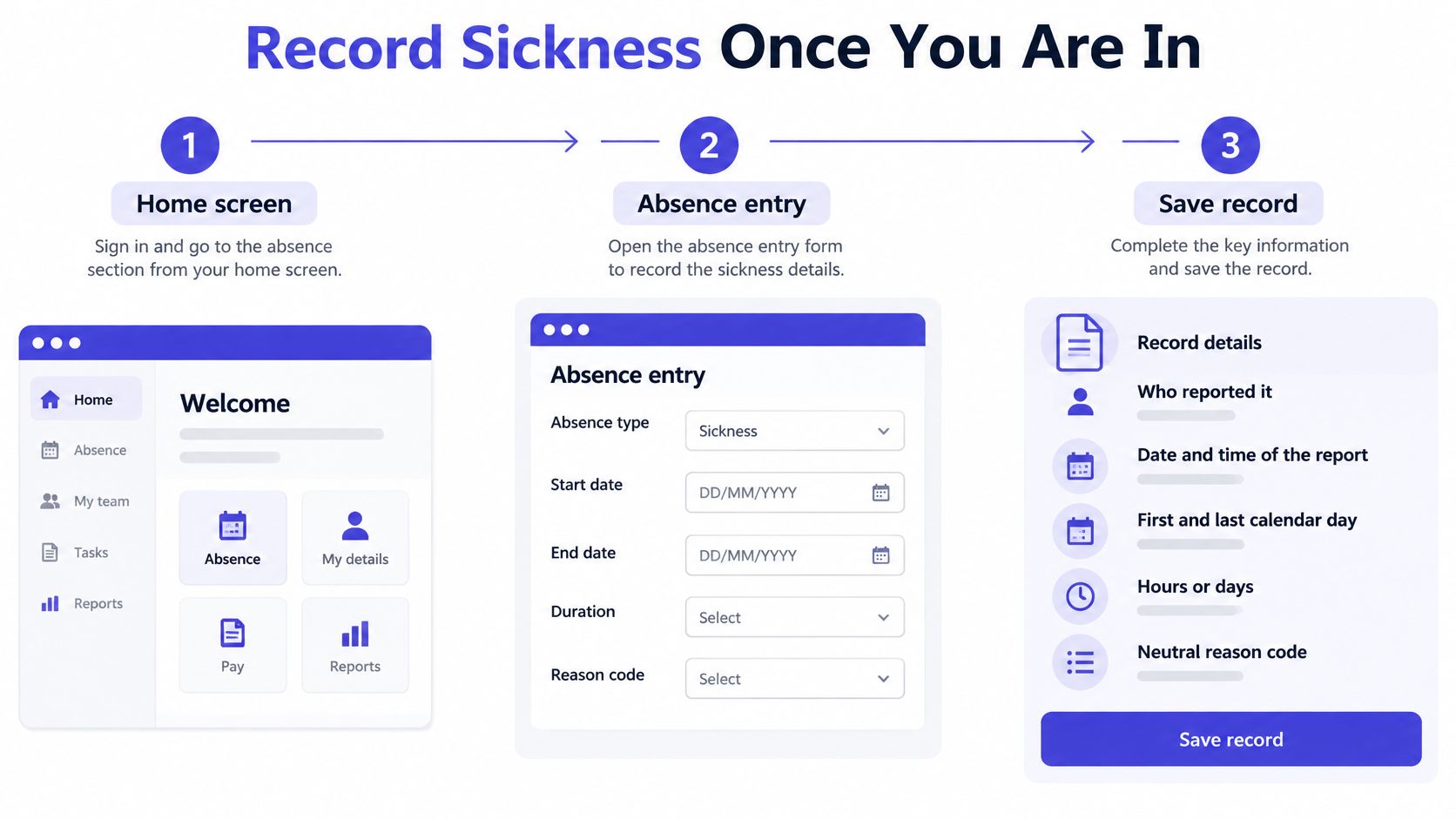
From the home screen, open the absence entry and record the facts payroll and your manager will later rely on. A thin record with only two dates causes most of the follow up questions.
The timeline below shows the fields worth capturing as you move from the home screen into the entry form.
Fields Worth Keeping
- Who reported it: The employee, or the manager or administrator who took the call.
- Date and time of the report: When it was reported, not just when someone typed it up.
- First and last calendar day: The full run of consecutive days, including non-working days.
- Hours or days: Which unit the absence is measured in, so part days aren't rounded away.
- Neutral reason category: A short code rather than a written medical history.
- Acknowledgement state: Whether a manager has seen it, approved it, or is still to act.
Keep the original request and later edits rather than overwriting them. Payroll needs to show what was reported at the time, and a record that changes without notice can't do that.
Count Calendar Days, Not Shifts
The seven day rule is where recording goes wrong. The GOV.UK guidance on notice and fit notes explains that an employee can generally self-certify sickness for the first 7 calendar days, including weekends and bank holidays. If the absence continues beyond 7 consecutive days, the employer may request a fit note and the employee must provide one when required.
Say someone is first unwell on a Friday and is still unwell on the Saturday of the following week. That's eight consecutive calendar days, even though they only work weekdays, so a counter that only counts rostered shifts would show six and ask for evidence too late.
Count every day on the calendar from the first day of sickness. Weekends and bank holidays still count.
Count from the first day the employee was unwell, not the first shift they missed. If they became ill on a rest day and then missed the next shift, the earlier date starts the run.
From Day Eight, Evidence
From day eight the employer may require a fit note, printed or digital. It can come from a GP or hospital doctor, and also from a registered nurse, occupational therapist, pharmacist, or physiotherapist, so don't reject a note just because a GP didn't sign it.
Record the outcome rather than the medical detail. A note may say not fit for work, or may be fit for work with named changes to hours or duties, so save that recommendation, any review date, and the agreed outcome. If suitable changes can't be agreed, treat the employee as not fit for work, and don't withhold Statutory Sick Pay merely because a fit note was submitted late.
Avoid a free text medical history in the absence field. If you're unsure who should see a piece of information, keep it out of the shared record and use the role limits, and if the entry won't save, check the error table for a missing date or type.
Report Absence When Sign-In Fails
You're unwell, the password won't work, and the reset email hasn't arrived. That isn't an unreported absence, and it shouldn't be treated as one.
Use the Fallback You Already Know
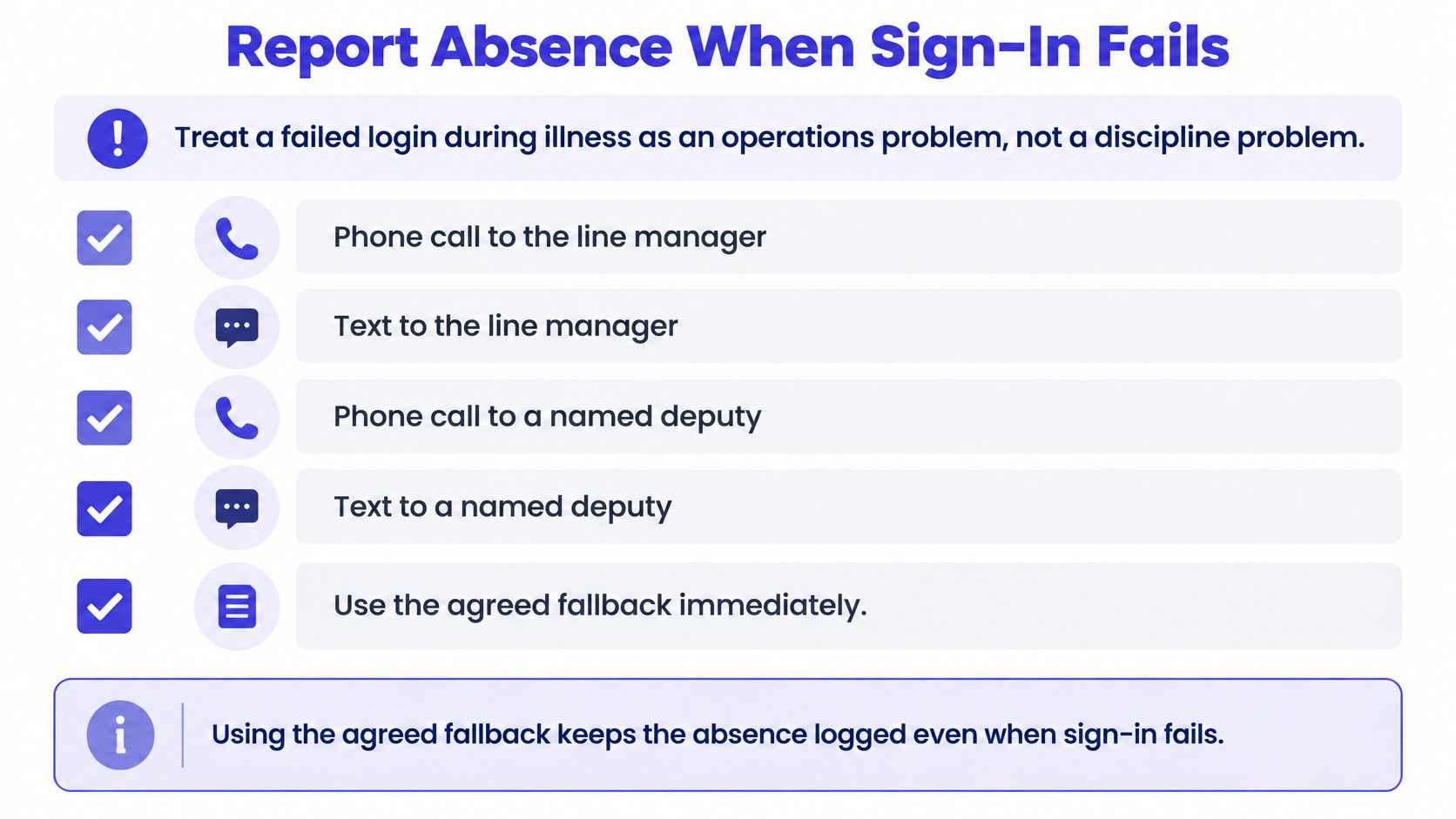
Treat a failed login during illness as an operations problem, not a discipline problem. Your fallback should be a phone call or text to your line manager or a named deputy, using the same timing your absence policy already requires for reporting.
The checklist below sets out that fallback path, so nobody has to improvise it on a sick morning.
Don't pass your password to a colleague so they can log it for you. The record would then claim you entered it yourself, and your credentials would be in someone else's hands. A short call does the same job safely.
If you want the wording for that first call, the guidance on calling in sick covers what to say and when. Keep it brief, give your expected return if you know it, and say how you can be contacted.
What the Person Receiving It Must Record
The manager or deputy then signs in with their own account and records the absence against you. That entry should note who reported it, when they reported it, and that it was entered on your behalf.
- Reporter and time: Name the person who took the call and the time it came in.
- On behalf of: Mark clearly that the employee didn't enter it themselves.
- Calendar dates and hours lost: Record both, so a night shift isn't dropped because the portal defaults to a daytime schedule.
- Original report kept: Leave it in place even if the employee amends the details after recovering.
That audit note is what keeps a delegated entry accurate. Without it, a later reader can't tell a genuine phone report from a record somebody invented.
Deputies, Email Gaps, and Fairness
A manager who is also off needs a deputy with access arranged in advance. Without one, approvals sit untouched and reminders go to somebody who can't act on them, which is how cover gets missed. The deputy should see only that team, as set out in the route and role tables, including the no work email and shared device rows.
Where an employee has no corporate email, the administrator creates their account afterwards so they can see the record. Leaving the only copy in a text message means the absence disappears from reporting and payroll has nothing dated to work from.
Finish with a fairness check. If the employee used the agreed fallback on time, don't record the episode as unreported just because the login failed.
Confirm Access Before the Next Absence
Prove the account works while you're well. A two minute test today is worth more than a password reset at dawn with a fever.
Three Checks by Role
Employee check. Sign in on the device you'll use when you're ill, which often means a personal phone rather than an office PC. Open your balance, confirm the leave year and your name, then sign out of any shared browser you used.
Manager check. Confirm a recent or sample request from your team is visible, and that you can open it rather than only seeing your own balance. Then confirm a named deputy exists and knows they're the deputy.
Administrator check. Confirm new starters have their own invitation, leavers can't sign in, and the absence policy names who to call if the portal is down. If a leaver's account still opens, suspend it now rather than at the next audit.
Test rule: If you can't sign in today, you won't manage it on the morning you're unwell.
For small teams replacing spreadsheets, LeaveWizard is a practical place to run this check. Employees can submit leave requests through a smartphone app or a web self-service portal, and a customer's designated administrator can access and update employee details in the employee details section of the site. That same sign-in is what makes a dated absence record possible, instead of a note in a spreadsheet cell. If you'd like ongoing practical tips, employee management tips and advice can be received by email through a sign-up on the LeaveWizard site.
When Something Still Fails
Contact your employer's designated administrator first. Send your registered email, the route you used, the exact on-screen message, and the time of the failure, because most faults turn out to be a missing account or a single sign-on setting that a vendor can't see from outside.
Use the product support channel only after that local check, through the support contact details published on the official LeaveWizard website. Sending the same four details there saves a round of questions.
Make one decision now. If the test sign-in failed, fix the route or the account today, and don't wait for the next sick morning to find out it still doesn't work.
Put this into practice by giving every employee one working absence management login, a clear role based view, and a named fallback for the mornings when sign-in fails. LeaveWizard gives small teams self-service requests by app or web, manager approvals with cover visibility, and dated absence records that replace spreadsheet tracking. Visit LeaveWizard to set up your routes, test each account, and make the next absence a two minute job rather than a scramble.


